PeopleSoft applications will be unavailable from 6 p.m. Saturday, October 22 and noon Sunday, October 23 while University IT upgrades the PeopleSoft EFS/Finance application. While the upgrade work is underway, MyU, Campus Solutions, EFS/Finance, and Human Resources applications will be unavailable.
This upgrade helps our PeopleSoft EFS/Finance application catch up on vendor provided updates, bug fixes, and (potentially) adopt new features. In addition, the upgrade ensures we retain vendor support.

Showing posts with label upgrade. Show all posts
Showing posts with label upgrade. Show all posts
Friday, September 30, 2022

Friday, August 26, 2022
Parchment admin platform upgrade
From October 3 to 4, our Parchment admin platform will be upgraded to combine the platforms for transcript and digital diploma services. The student ordering experience will remain the same, but there will be changes to student accounts, particularly for those who have previously created an account. Students who log in through MyU will not need additional account support. Students who previously created accounts will need to create a new one, which will be updated by OTR/One Stop with a student ID for an order to be completed.
Upgraded functionality will include:
Upgraded functionality will include:
- Improved tracking and support for digital diplomas
- Third-party ordering for external requesters/institutions
Friday, July 29, 2022
Launch of One Stop websites
The redesigned One Stop websites launched on Monday, Jul 18, 2022. As we close out the project and move the One Stop websites into a product management process we hope to uphold the content strategy standards that have been used throughout the redesign project. Putting user research and testing at the forefront of any decisions about what to change on the site will be crucial in maintaining the site's objectives.
If you notice any issues on your campus One Stop website, have feedback or suggestions, please reach out to the appropriate contact for your campus.
If you notice any issues on your campus One Stop website, have feedback or suggestions, please reach out to the appropriate contact for your campus.
Friday, March 25, 2022
One Stop website upgrade update
The One Stop website upgrade is scheduled to go live in July, 2022. This upgrade from the Drupal 7 to Drupal 9 content management system will include a few key updates, including a transition to the central University Relations created Folwell design theme as well as some select feature updates based on student-centered usability testing findings. Early this summer, student services staff will have the opportunity to familiarize themselves with the new site before it goes live for students.
Friday, May 28, 2021
One Stop website upgrade
Sara Cokl has been hired as the new project & change manager for the One Stop Website Upgrade project, which will move the website from Drupal 7 to Drupal 9. Currently, ASR’s UX and Content Strategy team is collaborating with the One Stop Web Steering Committee to conduct user research and update the current website’s content strategy to better reflect how technology and students’ needs have evolved since the last upgrade five years ago.
Once this user research and an updated content strategy has been completed, the existing One Stop content for all campuses will be moved onto the upgraded content management system. Due to the preparation and heavy lifting required for the website upgrade, the current projected completion date is summer 2022.
A communication strategy will be developed to ensure staff have an opportunity to provide feedback and are updated on the progress of the website. If you have any questions or insights regarding the One Stop website upgrade, please reach out to Sara Cokl (saracokl@umn.edu) or Jabra Kawas (kawa0003@umn.edu), the Twin Cities One Stop Web Steering Committee representative.
Once this user research and an updated content strategy has been completed, the existing One Stop content for all campuses will be moved onto the upgraded content management system. Due to the preparation and heavy lifting required for the website upgrade, the current projected completion date is summer 2022.
A communication strategy will be developed to ensure staff have an opportunity to provide feedback and are updated on the progress of the website. If you have any questions or insights regarding the One Stop website upgrade, please reach out to Sara Cokl (saracokl@umn.edu) or Jabra Kawas (kawa0003@umn.edu), the Twin Cities One Stop Web Steering Committee representative.
Friday, May 1, 2015
After the Upgrade: Getting to Mail and Moodle through MyU
A new MyU is launching as part of the PeopleSoft Upgrade on April 20. It will be available at the same address as the current myU: myu.umn.edu. The new MyU is role-based, with a personalized interface based on what you do at the University. MyU brings together links and information to help faculty, students, and staff get business done at the U.
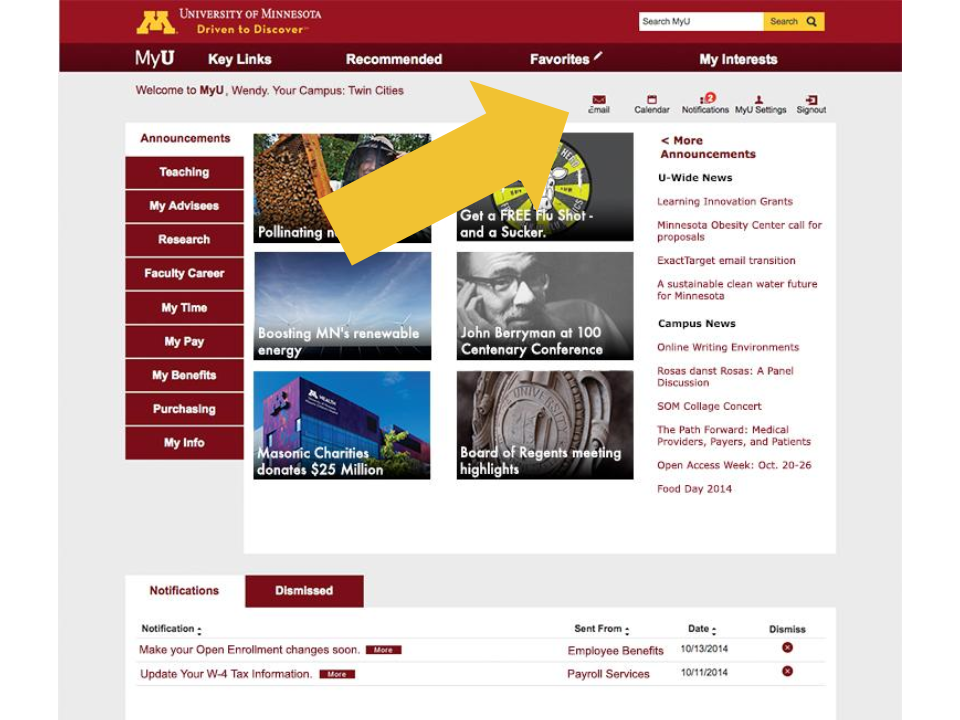
Can I still get to my Moodle course sites?

Questions? Email upgrade@umn.edu.
Will I still be able to access my University email account in MyU?
Yes! Just use the link in the upper right of the new MyU. Alternatively, you can always access your University email account at mail.umn.edu. You’ll need to log in with your Internet ID and password.
Yes! Look under “Key Links” in the new MyU. Alternatively, visit moodle.umn.edu. Then you'll see all the Moodle course sites you have access to in the Moodle Kiosk on the main page.
Questions? Email upgrade@umn.edu.
Managing advising committee members
Those who update advising committee members will need to be sure to check the “Include History” box on Manage Committees search page. If not, the system does not recognize previous rows and may produce an error message. The UPK documentation is updated to reflect this step.
MyU Tips
Many issues encountered in the new MyU are resolved with the following actions. Try them and share with others:
Still having issues? Find help here.
- Upgrade your browser. Use the most recently released version of your browser for the best experience.
- Clear your cache. Many common issues are caused by un-cleared cache.
- Disable pop-up blockers.
Still having issues? Find help here.
Thursday, April 30, 2015
Upgrade update
Upgraded systems launched on April 20 as scheduled. A huge thank you to all staff that made this transition successful and smooth. The ASR Training Team and business analysts are receiving many inquiries and working through them with users from across system campuses. Help lines are receiving a higher-than-average number of service requests, and things are being worked through as quickly as possible. Your patience is appreciated during this time. Many inquiries are resolved by reminding people to upgrade their browser, clear their cache, and disable pop-up blockers. Please continue to contact your normal support line with any issues or questions.
Tuesday, April 28, 2015
Using the new final grade entry process
As the semester continues after the launch of the Upgrade, many upgraded systems will be used for the first time. For example, in the next few weeks faculty, instructors, and their proxies will use the new final grading process. As part of the Upgrade, the University’s custom developed grade entry applications were retired and are no longer available. Faculty, instructors, and their proxies will now enter grades by utilizing the MyU: Teaching tab. Here are some highlights of the change and some helpful tips for grade entry.
Please note: the information below is intended to complement what may have been sent from colleges or departments to their teaching faculty, including processes specific to their unit.
Class rosters and grade entry for courses owned by the School of Public Health are available only through the School of Public Health grading system. Faculty within the Medical School and the Law School typically do not access their grade rosters electronically and should contact their administrative support if they have questions.
Please note: the information below is intended to complement what may have been sent from colleges or departments to their teaching faculty, including processes specific to their unit.
Verify access to grade rosters
Faculty, instructors, and their proxies should verify that they have access to all of their assigned grade rosters before the last day of instruction. To do this, access your Faculty Center in the MyU: Teaching tab and view the Grade Rosters for the classes you teach. When grade rosters are created (generally about twelve days before the last day of the term), those with access will see an icon that looks like a person inside a square next to the class in Faculty Center. Click that icon to view the roster. If you do not see the grade rosters you expect, please contact your department scheduler.Class rosters and grade entry for courses owned by the School of Public Health are available only through the School of Public Health grading system. Faculty within the Medical School and the Law School typically do not access their grade rosters electronically and should contact their administrative support if they have questions.
Uploading grades directly from Moodle
Final grades entered in Moodle can be transferred directly into the grade roster within the Faculty Center. This guide to uploading gradebooks from Moodle to the final grade roster in PeopleSoft outlines the process. Those using this option should make sure that the final grade roster has been created prior to uploading from Moodle. It is important to note that once the grades have been transferred, they still must be reviewed and approved in Faculty Center.New “NR” grade replacing grades that are left blank
Once the grading deadline has passed, a new grading mark, NR (Not Reported), will be given to students who are not assigned a grade by their instructor. The NR will be treated like a blank grade was in the previous system (e.g., zero grade points, zero credits).Additional resources available on One Stop Faculty website
How-to guides on entering grades, making changes to grades, and more are available in the Grades section of the One Stop Faculty website. Grading due dates, frequently asked questions, and grading and transcript policies are also available.Tech tips
- A good first step for those encountering difficulties is to clear their browser’s cache.
- Browser type and version can affect grade entry. Those having trouble should try updating their browser or using another one.
- Grade entry will work on mobile browsers (e.g., phones, tablets). Some pages have been designed to respond to multiple screen sizes, and some have not. Non-responsive pages should still function, but may be less aesthetically pleasing and could present anomalies.
Thursday, April 9, 2015
How the class waitlist process will work after the Upgrade
The class waitlist process is undergoing some major process changes as a result of the Upgrade. We would like to provide some additional information and resources to guide you and your students through this transition.
Along with the auto-enroll class waitlist process, the University will begin using delivered functionality that allows students to have the system automatically drop them from a conflicting class if a seat becomes available for them. Rather than placing themselves to the waitlist from the “Add” function, they will use the “Swap” functionality in the enroll tab. This will place them on the waitlist (that can be prioritized by faculty or departments), but in a way that tells the system to drop them from the conflicting class if a seat becomes available for them in the desired class.
How to future swap classes
How to enter a permission number
How to add yourself to a class waitlist
Background
Currently, students usually find an alternate class, add themselves on the desired class waitlist if one exists, and wait for a spot to open up. If a seat becomes available, they would be invited to enroll in the class from the department offering the class. The invitation includes a permission number that allows them to register. With that in hand, they then have the opportunity to adjust their enrollment to avoid time conflicts before registering for the desired class.What’s changing?
The new class waitlist process eliminates the invitation step and automatically enrolls students when seats open. Students will receive an email if they are successfully enrolled from the waitlist. However, this auto-enroll process will not complete if the student was added to the waitlist and is enrolled in another class that has a time overlap. Instead, they will receive a notification alerting them that there was a conflict. The student can then resolve the conflict by dropping the other class before the auto enroll process starts again.Along with the auto-enroll class waitlist process, the University will begin using delivered functionality that allows students to have the system automatically drop them from a conflicting class if a seat becomes available for them. Rather than placing themselves to the waitlist from the “Add” function, they will use the “Swap” functionality in the enroll tab. This will place them on the waitlist (that can be prioritized by faculty or departments), but in a way that tells the system to drop them from the conflicting class if a seat becomes available for them in the desired class.
What’s the timeline?
- During the systems interruption (approximately April 10-20): Students will be unable to add or remove themselves from waitlists. An email will be sent the week of April 13 to Twin Cities students who are currently on a waitlist informing them that they will be unable to add or remove themselves from a waitlist during the system down time and what the process will be after the Upgrade. They will be directed to the how to guides on the One Stop website and to contact One Stop (or the Office of the Registrar in Crookston) with any questions.
- After go-live (April 20): The new auto-enroll process will start on Friday, May 1 for the Twin Cities campus. Students on a waitlist approximately two days prior to this will receive an email stating that the process is about to start, and if they do not wish to be auto-enrolled, they need to remove themselves from the waitlist immediately.
Resources
For students
How to swap classesHow to future swap classes
How to enter a permission number
How to add yourself to a class waitlist
For staff and faculty
Waitlist and Auto-Enroll UPKWednesday, April 8, 2015
Clearing Cache and Cookies
Sometimes your colleagues will not be able to access the new system pages. The most common cause for this problem will be un-cleared cache. This means that the computer is storing outdated snapshots of former web pages, and they need to be cleared out so the new pages can load.
Many times the fix is as simple as hitting the “Refresh” button. But if that doesn’t work, you can clear cache for a specific browser, and clear cookies too, by following the steps outlined in the online resources below.
Many times the fix is as simple as hitting the “Refresh” button. But if that doesn’t work, you can clear cache for a specific browser, and clear cookies too, by following the steps outlined in the online resources below.
How to Clear Cache and Cookies in Firefox
http://it.umn.edu/how-clear-cache-cookies-firefoxHow to Clear Cache and Cookies in Safari
http://it.umn.edu/how-clear-cache-cookies-in-safariHow to Clear Cache and Cookies in Internet Explorer
http://it.umn.edu/how-clear-cache-cookies-internetHow to Clear Cache and Cookies in Chrome
http://it.umn.edu/how-clear-cache-cookies-chromeThursday, April 2, 2015
Scheduled outage for ECAS and PCAS
Due to the Upgrade, ECAS and and PCAS will be unavailable for viewing, submitting, or approving proposals from April 10 at 1:00 a.m. until Go Live, scheduled for April 20. During that time, the ECAS and PCAS websites will be redirected to a webpage explaining the outage. Proposals that are in process during the outage can be approved when the systems become available again.
Course information can be viewed as normal during this period.
Course information can be viewed as normal during this period.
FERPA: Are admissions files included as part of the education record?
The short answer is, yes. They contain personally identifiable information about the student and are maintained by the institution, so they are considered an education record. As such, if a student requests access to his or her admissions file and it hasn't been destroyed (following the University's retention policy) the student has the right to view the information. The one caveat to this is letters of recommendation the student has waived the rights to see, the waiver excludes those records from student review. If the information is still maintained and the student has requested to view it, the record cannot be destroyed at that point even if according to the retention policy it could have been.
Final Student Experience Preview session scheduled
The final Student Experience Preview session is scheduled for Friday, April 17 from 12-1 p.m. in Rapson Hall, room 58. The session will include demonstrations of class registration, bill payment, and viewing financial aid. Also covered will be how MyU and the One Stop website will work together after the upgraded systems launch. This session is created for those who support students (e.g., advisers, student services staff). No RSVP required.
Job Aids for the Upgrade
The training team has published User Productivity Kits (UPK) on several topics for the Upgrade. These UPK topics provide a tour of University of Minnesota PeopleSoft processes and can be accessed from the Help button in PeopleSoft 9.0, or at asr.umn.edu/upgradetraining. If you would like a printable job aid, use the “Print It” mode of a UPK.
Voice messages to the helpline now open ServiceNow tickets
To provide better service to our users, voice messages left on the Student Records Help Desk support line (621-625-2803) now trigger ServiceNow tickets to open for the Training and Support Team, just as emails sent to srhelp@umn.edu have been doing for the last few years. Staff are reminded that they need only leave a voice message or send an email, as doing both would open duplicate ServiceNow tickets.
Friday, March 27, 2015
The New MyU for Faculty
Take a look at new features and changes for faculty in the new MyU. These include streamlined access to teaching and advising information, consolidated grade entry, the Reporting Center, and MyU tabs for research and faculty career information, all available when the Upgrade goes live April 20th.
Learn more at http://upgrade.umn.edu/faculty/index.html
Video coming soon: "New MyU for Employees."
Learn more at http://upgrade.umn.edu/faculty/index.html
Video coming soon: "New MyU for Employees."
Thursday, March 26, 2015
Changes to Parent/Guest Access to student accounts
The Upgrade will include a new Parent/Guest Access system. This new system will be easier to access, transactions will be easier for parents to complete, and One Stop counselors will have the same view as the user, making questions and issues easier to resolve.
The current system will be taken offline at 4:30 p.m. on Wednesday, April 8. When the Upgrade is complete (scheduled for April 20), the new Parent/Guest Access system will be available.
How to view/pay your student’s bill (coming soon)
How to access your student’s record coming soon)
The current system will be taken offline at 4:30 p.m. on Wednesday, April 8. When the Upgrade is complete (scheduled for April 20), the new Parent/Guest Access system will be available.
What’s changing?
There are two important changes for Parent/Guest Access:- Students will share grade information by granting access to their unofficial transcript.
- Parent/Guest Access will be system-wide. That means if a student has attended more than one University of Minnesota campus, the access to the student record will include information from all campuses attended.
What do I need to do now?
- Students should review the access they currently have set up. This is the access that will be converted to the new Parent/Guest Access system during the Upgrade - with one exception:
- If you are a student who has provided access to grades but not holds, be aware that your parent/guest will not have access to grades after go-live. If you grant access to holds now, they will have access to your unofficial transcript after the Upgrade is complete.
- If you are a student (or the parent of a student) who has initiated the Parent/Guest Access process, be sure it is completed before April 8 at 4:30 p.m. (if not, the student will need to start over in the new system).
What do I need to do when the Upgrade is complete?
- Students are encouraged to review their shared information settings. To do this, go to myu.umn.edu > My Info > Parent/Guest Access > Share My Information.
- Parents should review and confirm their access. To do this, go to myu.umn.edu > Key Links > Parent/Guest Access.
Background
Parent/Guest Access must be granted by the student in order for a parent or guest to access the details or to view and make payments for the student’s account. Students can grant access (allowing parents/guests full access to view the student account and complete online billing and payment) or view-only access to things such as class schedule, financial aid, holds, and unofficial transcripts. No level of access allows the parent or guest to request an official transcript, register for classes, respond to the eFAAN, or update student personal information.Resources
For students
How to authorize accessFor parents and guests
How to complete Parent/Guest AccessHow to view/pay your student’s bill (coming soon)
How to access your student’s record coming soon)
Tuesday, March 24, 2015
Changes to key student records reports
After the Upgrade a new, centralized MyU Reporting Center will be the hub for your student systems report needs. It will contain links to reports that are being carried forward from UM Reports, UM Analytics and PeopleSoft. Read the Transitioning to UM Reports blog post to help you prepare for the new MyU Reporting Center.
What’s changing with key student record reports?
The Upgrade will change the appearance, functionality, and location of the tools and reports that you’ve become accustomed to accessing through UM Reports, UM Analytics or PeopleSoft 8.9. Some are being retired and others are being replaced by real-time data in PeopleSoft pages. Review the information below to prepare for changes to key student record reports.Academic Record
- The UM Report - Academic Record will be replaced by PeopleSoft pages with real-time data that covers the same information. After the Upgrade, this information will be found through the new MyU → Click “Key Links” → select Reporting Center → Student Services → Student Records.
- To get to an assigned advisee’s Student Center page, where you can view and print “unofficial transcripts,” start in the new MyU → click Key Links tab → select Advisor Center → click on “View Student Details” next to an advisee’s name and ID → select “Transcript: View Unofficial” from the “Other Academics” drop-down menu.
- Any current staff member who has view access to PeopleSoft Student Records can access the PeopleSoft Student Services Center page, which contains the information replacing the UM Report - Academic Record.
Graduate Education Student Profile
- The Graduate Education Student Profile will be replaced by PeopleSoft pages with real-time data that covers the same information.
- After the Upgrade, this information will be found through the new MyU → Click “Key Links” → select Reporting Center → Student Services → Student Records. This will include:
- General info
- Service indicators
- Addresses
- Transfer credit information
- Academics
How to print an unofficial transcript
- Only advisors will be able to print an unofficial transcript through the advisee’s Student Center page in the Advisor Center. All other staff will need to navigate to the Request Transcript Report page in PeopleSoft.
- To view and print an “unofficial transcript” (i.e. the PDF version of an Academic Record report), inside an advisee’s Student Center page, under the Academics tab, click the drop-down menu and select “Transcript: View Unofficial” and click the double arrows to proceed. A prompt window will open, select “Request Unofficial Transcript” then view report. It will open as a printable PDF.
Course List and Class Rosters
- After the Upgrade, the Class List report will be replaced by a PeopleSoft page with real-time data. Staff members will access this information through the new MyU → Click “Key Links” → select Reporting Center → Student Services → Enrollment.
- For faculty, instructors, and their assigned proxies, the class list and roster information should be accessed through the Teaching tab of the new MyU. This opens a list of courses, which you can click through to get to the Faculty Center and access class rosters (through the class roster icon, looks like a group of people, or tab). This will be the only way to access class roster photos (if available).
- This information can be downloaded to Excel by clicking on the table icon with the red arrow, or printed by clicking the “Printer Friendly Version” link at the bottom of the page.
- To learn more about the Faculty Center’s my schedule, class roster and grade roster pages, view the PeopleSoft Faculty Center guide.
Probation/Suspension
- The Probation/Suspension and Probation Holds reports will be replaced by a PeopleSoft page with real-time data.
- After the Upgrade, this information will be found through the new MyU → Click “Key Links” → select Reporting Center → Student Services → Student Records.
- Additionally, students will have the ability to see if they are in good academic standing, values will include:
- Good - Good Standing
- PRB1 - Probation Level 1
- PRB2 - Probation Level 2 (Can have multiple terms Prob Level 2)
- DISM - Dismissal/Suspension
- PRAD - Probation after dismissal/suspension
- PRBH - History of Probation
Leave of Absence
The Leave of Absence report is being retired. This information can be provided to you upon request. Please contact Ingrid Nuttall with questions or concerns.
Subscribe to:
Posts (Atom)